
Server and IT Infrastructure Migration: A Checklist That Keeps the Business Running
How to plan moving an SMB's servers, data and services: dependency inventory, choosing the method, staging test, cutover night, rollback and decommissioning the old hardware.
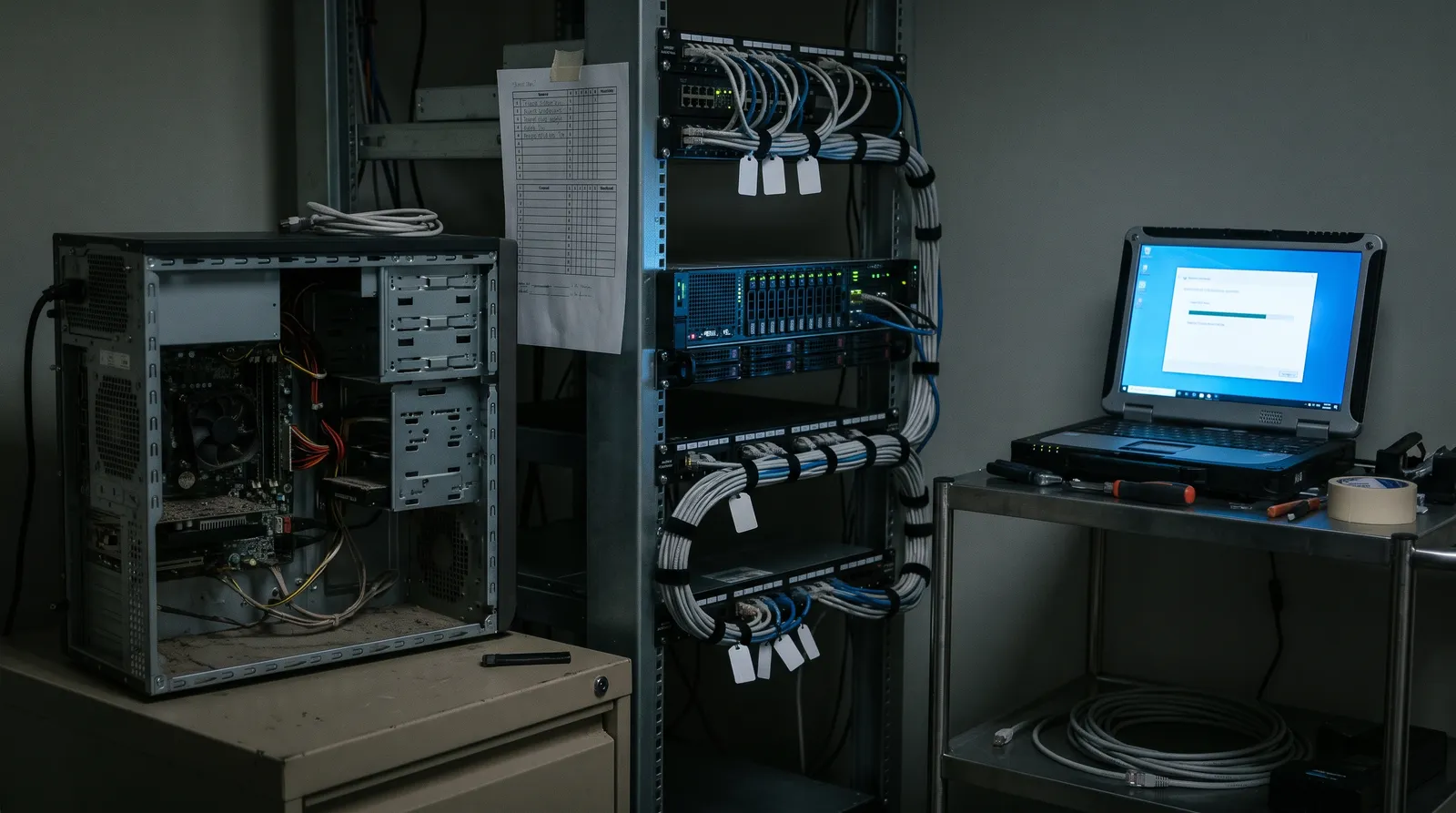
Most migrations that go wrong do not fail on the new server. They fail on something nobody knew depended on the old one: the ERP licence tied to the hardware, the scanner saving to a shared folder through a hand-typed path, the production machine software pointing at a fixed IP address.
This is the checklist we use to move an SMB’s servers and services, whether from an old physical box to a virtualized host, from one site to another, or to the cloud. It works for a single server as well as for a full refresh.
Why many companies are migrating now
Two end-of-support dates hit many SMBs between 2026 and 2027:
- SQL Server 2016 left Microsoft extended support in July 2026. Many ERP and accounting systems installed between 2016 and 2019 run on it, often the Express edition.
- Windows Server 2016 leaves extended support on 12 January 2027. After that, security updates come only through paid Extended Security Updates, for up to three more years.
An unsupported server keeps booting, but every vulnerability discovered from then on stays open. If you have NIS2 obligations or receive security questionnaires from customers, an unsupported operating system is one of the first things that comes up.
Phase 1: inventory, especially what you cannot see
The list of servers is easy. The list of what depends on each server is what makes the difference. For every server, write down:
Roles and services
- Domain controller, DNS, DHCP, print server, file server
- Databases (which, what version, who uses them)
- Installed applications and who installed them
- Scheduled tasks and scripts: backups, nightly exports, files sent to suppliers or the bank
Hidden dependencies
- Licences tied to hardware, server name or MAC address, and USB protection dongles
- Shared paths hard-coded in software, Excel macros, scanners and multifunction printers
- Fixed IP addresses configured in devices and machinery
- Certificates, including expired ones someone still relies on
- Remote access for external vendors: ERP support, machine maintenance
- Integrations: e-invoicing, digital archiving, e-commerce, time and attendance
People
- Who knows how the ERP is configured, and the contact at its vendor
- Who checks that everything works the next morning, department by department
A simple way to find dependencies: leave connection logging on for the old server for one or two weeks and look at who connects to it. The surprises almost always show up there.
Phase 2: choose the method for each service
Not everything should move the same way.
| Method | When it makes sense | Watch out for |
|---|---|---|
| Physical-to-virtual conversion (P2V) | Servers with hard-to-reinstall applications, OS still supported | You move all the accumulated clutter too. Hardware-bound licences may break |
| Fresh install plus data migration | Unsupported OS, server full of undocumented configuration | More work, but the chance to document everything |
| Move to cloud | Email and office files, applications the vendor already offers as SaaS | Site bandwidth, recurring costs, ERPs that need low latency |
| Decommission | Services nobody uses any more | Make sure nobody really uses them, see the connection log |
For servers that stay on site, we usually consolidate onto a virtualized host running Proxmox VE with backups on Proxmox Backup Server: virtual machines are far easier to move, copy and restore than a physical server. For email and office documents, the route is often Microsoft 365 or Google Workspace.
Phase 3: test everything in staging
Before touching production, do the whole migration in an isolated environment with a copy of the real data.
- Restore a copy of the old server or its data onto the new system.
- Have a real user from each department open the ERP and do their daily tasks: an invoice, an order, a print, a scan.
- Time the data copy: it tells you how long the cutover window will be.
- Write down the exact steps, in order. That list becomes the script for cutover night.
If something fails in staging, you found the problem for free. On cutover night you would find it with the company stopped.
Phase 4: rollback plan
Before the cutover, decide three things in writing:
- The point of no return. Up to which step you can go back to the old server without losing data.
- The rollback criterion. For example: if the ERP does not work for accounting by 7:00, we roll back.
- Who decides. One person, present or reachable.
The old server stays powered off but intact for at least a few weeks after the cutover. Do not wipe or recycle it until you are sure you will not need it.
Phase 5: cutover night
- Pick a quiet time: Friday evening or before a holiday, never at month-end if accounting is closing.
- Warn users in advance, and ask them to close all programs and not work during the window.
- Take a full backup of the old system right before you start, and check it is readable.
- Follow the script written in staging, ticking off each step.
- Update DNS, shared paths, logon scripts and device configurations.
- Before you finish, check the main functions yourself: sign-in, ERP, printing, scanning, email, remote access.
Phase 6: the morning after
On the first working day after the cutover, someone must be on site or immediately reachable. The remaining issues are almost always small: a printer mapped wrongly, a desktop shortcut pointing to the old path, a single user’s program.
Collect reports in one place, fix them, and after a few days ask one contact per department to confirm everything works.
Phase 7: decommissioning and documentation
- Update the documentation: network diagram, server list, credentials in the password manager, procedures.
- Check that backups of the new system are running and do the first test restore.
- After the safety period, securely wipe the old server’s disks before disposing of or reselling it. They contain personal and business data.
- Remove remote access, firewall rules and accounts that only existed for the old system.
How long a migration takes
For an SMB with one or two servers and an ERP, hands-on work is measured in days, but planning in weeks: inventory and method choice, staging test, one or two cutover evenings. The most variable part is the ERP vendor, who often has to step in for licensing and installation: contact them first.
If you want to do it with us
We migrate SMBs in the Veneto region on site and the rest of Italy remotely: inventory, staging test, phased cutover in the evening or at weekends, and a tested rollback. The service is on the IT modernization and server migration page; for email and documents there is migration to Microsoft 365 and Google Workspace. If you have a server reaching end of support, write to us with what runs on it and we will tell you how we would move it.
Sources & Credits
- Microsoft Lifecycle — Windows Server 2016 — End of extended support date
- Microsoft Lifecycle — SQL Server 2016 — End of extended support date